For the last 6 months, I’ve used Universal Blue, a series of Fedora images with a strong user-facing focus. On the surface, Universal Blue is no different from your standard Linux distribution. Instead, Universal Blue is about the future of desktop Linux and a glimpse of how it could be better.
But more than a year ago (and recently), I chatted with Jorge Castro, one of the lead developers, and I have never seen something from any other project in a long time that offers a lot of promise. A lot has happened between now and then, so has it been any different from using a different Linux distribution?
Picking an Image
The first thing to know is Universal Blue isn’t so much a distro as different variants of Fedora’s Atomic Desktops. you do is pick which Universal Blue spin you want. I am using Bluefin, the GNOME experience. There’s also Aurora, the KDE experience, and Bazzite, the gaming version with both GNOME and KDE with the Steam Big Picture mode. For the more technical users, you can build your own using BlueBuild.
Essentially, you pick the version you like the best and it provides you a custom experience. Bluefin and Aurora are good for more desktop computer users and Bazzite is for the gaming crowd. I’ve used both Bluefin and Aurora as daily drivers, but haven’t tested Bazzite at all.
Universal Blue Images
Installation
After you’ve decided on which image you want, you can add support for specific hardware or setups. A ton is supported here.
- Desktops
- Framework laptops
- Microsoft Surface devices
- ASUS laptops
- NVIDIA installations
This is a huge deal because a lot of these modifications require custom kernels, installing third party drivers, or NVIDIA breaking your display manager. All of these are a pain to install and maintain on Linux and in an image, you don’t need to think about it.
After you’ve downloaded the ISO image, burned it to a USB drive, you can install your desired distribution. Installation is very similar to Fedora’s install, unless you install Bazzite, which is a different process, albeit similar and more glamorous.
When you first boot in, especially if you are a Secure Boot user, the very first thing to do is enter is the preset password for mokutil, which signs your system with secure boot. Unlike many other Linux distros, all uBlue images come with Secure Boot support enabled out of the box.
To enable Secure Boot, using the arrow keys, select “Continue boot”,
Enter, then enter in the password universalblue when prompted.
Periodically, Universal Blue rotates keys via
updates.
What’s So Different?
Bluefin includes a ton out of the box. For starters, a lot of management software not included in GNOME is included out of the box and some GNOME extensions make Bluefin similar to Ubuntu. The thing about Bluefin is it’s fairly unremarkable as a desktop. Under the hood, it’s how things are handled differently.
Atomic: The Same, But Different
Since Bluefin and Universal Blue are part of the Fedora Atomic desktop family, things that people know are different, but most of the same actions are backwards compatible.
For one, your Linux system files cannot be changed. Instead, your system is updated with the new system being queued up as independent systems and brought up the next time you reboot.
Related video: Red Hat’s Adam Šamalik gives a brief rundown of Fedora Silverblue, the parental base of Universal Blue.
This is a big bugaboo for neckbeard Linux users online, but what’s more interesting is modification is possible using existing frameworks in Linux, despite discourse online. This idea stems from a combination of obscure documentation and how Linux allows users to override developer-configurable pieces of their system.
Here’s a rudimentary example: while you can’t configure your /usr/
directly, you can configure your application in /etc/. Importantly,
systemd uses /etc/systemd/system and you can use systemctl edit to
edit systemd services and jobs.
Another obscure example is what isn’t said in the documentation. I use
DaVinci Resolve as my video editor of choice and in theory with an
Atomic Desktop, I shouldn’t be able to edit my system files. However,
some third party applications like DaVinci Resolve are installed in the
/opt/ folder and Fedora Atomic lets you install within /opt/ and it
persists beyond reboots.
Reboots are also way for you to recover from a bad update or disaster. If you don’t like an update, force your computer off or run a quick version recovery to get everything in your system back before an update was installed.
A criticism I and many developers have levied on “stable” Linux distributions is stable isn’t even safer. Using this kind of rollback on reboot is the way you keep a rolling package base and the peace of mind knowing you will always have a system one reboot away.
Related video: Richard Brown’s talk “Regular Releases are Wrong, Roll for your life”.
Installing Packages
If Fedora Atomic or Universal Blue is different, how do you install things? Like with system configuration, there’s many avenues to install the things that you need.
- For Flatpaks, you get Warehouse , which allows you to graphically interact with Flatpak data, install Flatpaks, and take snapshots of specific application versions.
- BoxBuddy is a graphical way of interacting with Distrobox. Distrobox is how you can install any program from any Linux distribution, provided it doesn’t require a horrible amount of system access. BoxBuddy provides a graphical way to update and also install programs within containers.
- For GNOME Extensions, Matthew Jakeman’s Extension Manager lets you install GNOME Extensions without a browser extension and toggle existing extensions.
- AppImages are also a portable method to install specific software that you need, albeit being messier to update and increased application size.
Related video: Luca Di Maio (AKA 89luca89)’s talk “Developing on Aeon with Distrobox”
But what if you don’t (or can’t) use any of these? Something to remember is Fedora Atomic still gives you an avenue to revert back to old school Linux packaging, but you will need to reboot in order to get these applications to appear.
For example, if I needed to install a .rpm file, like VeraCrypt.
rpm-ostree install veracrypt.rpm
If you previously installed something, it can also be removed.
rpm-ostree remove htop
Putting all of every method from configuring systemd and layering rpm packages, we can install Mullvad’s app as an example.
First, let’s add the repo, then install Mullvad. Afterwards, reboot as the new Mullvad package is queued for the next update.
curl https://repository.mullvad.net/rpm/stable/mullvad.repo | sudo tee /etc/yum.repos.d/mullvad.repo
rpm-ostree install mullvad-vpn
Next, we enable the relevant systemd service files.
sudo systemctl enable mullvad-early-boot-blocking.service
sudo systemctl enable mullvad-daemon
A lot of people get annoyed by this, but if you are annoyed by this, why in the world are you installing things so frequently? There’s probably something more productive you could be doing, even if that’s just sitting down to watch a movie.
Additional customization is available in ujust for some specialty applications. For example, DaVinci Resolve inside a Distrobox container, Ollama, and tweaking various settings.
Installing Updates
Here’s one of the best parts about installing updates on Universal Blue. You don’t have to do anything. What’s more is updates are queued and staged automatically.
Normally, on Fedora Silverblue or other Atomic Desktops, you’d need to run a rebase command periodically during Fedora’s annual releases. Additionally, there’s no GUI way of updating, not until systemd supports it.

Something that makes me laugh is Linux users pride themselves on updating. It’s equally frustrating with companies like Apple and Windows, still make it difficult to move to newer versions of Windows or macOS without manual intervention. I’m proud to say that Bluefin updated me to Fedora 41 and I didn’t even know. That’s how it’s done!
The Customization Conundrum
With all of these options, this sounds really great, so now’s the time for the “but.” What if you don’t like something that’s part of the Universal Blue image you installed? What if you try to remove something from the base image? You can, but there’s a catch.
Good Luck Building an Image
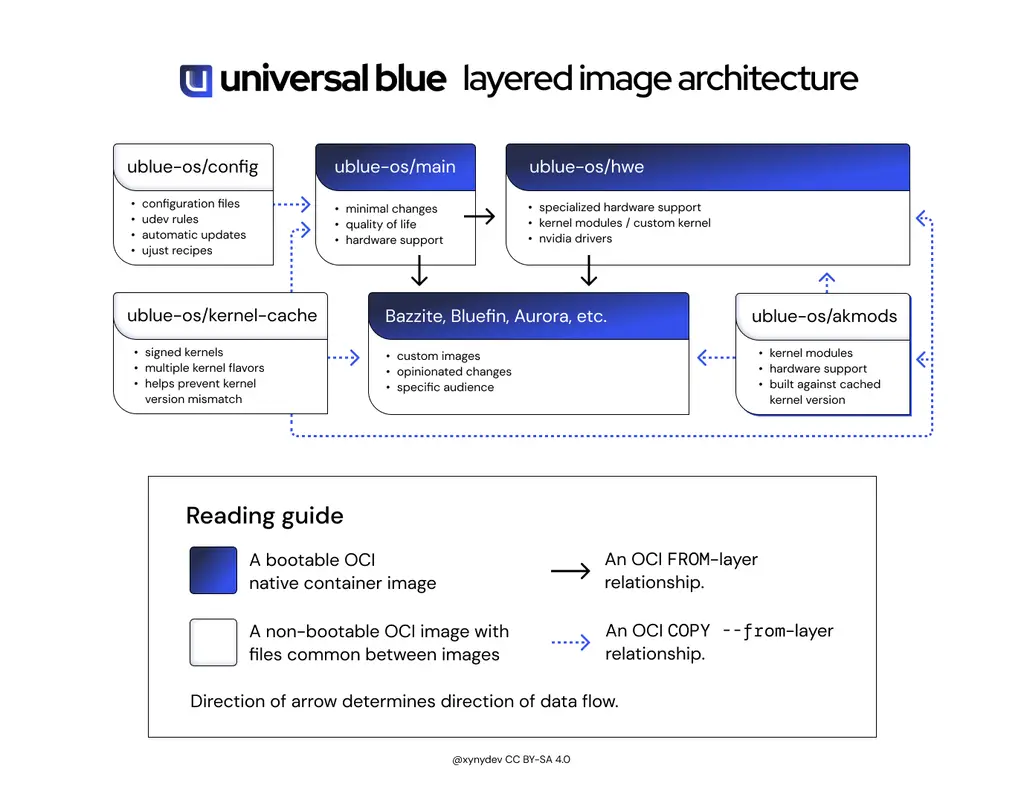
The way Universal Blue’s (or Fedora Atomic) images work is this and I cannot stress enough how much Universal Blue has put into the way this works. I’m going to break it down in an ultra-simplified way.
- You put one of the base Universal Blue images, which are a completely barebones installation of Fedora Silverblue or Kinoite, but with all of the hardware support that people want (e.g. NVIDIA). This base image is missing some specific things like VL42 Loopback patches for OBS or specific libraries for applications that are not installed (e.g. libxcrypt).
- You edit a file that basically records all of the changes you are doing. For example, if you don’t want to include GNOME Text Editor, you can run a command when the image is built to remove it.
- Finally, you build your constructed image on your Git server like GitHub, GitLab, or a homelab).
- You configure your server to build the image daily (or however long you need updates).
The reality is desktop Linux development is a niche and being able to remove an application is just as important as installing one and it needs to be done in a way that requires zero interaction with git voodoo magic I still cannot learn to this day.
The fact of the matter is it is objectively easier to enter in one terminal command to remove something rather than attempting to construct your own operating system flavor.
You Removed What?
This is the biggest problem in my mind with not just Universal Blue, but Fedora Atomic as a whole. In other Linux systems, you can just plum remove something if you don’t like it. Removing something you don’t like in Fedora Atomic requires way too much commitment. If you think I’m quick to blame Universal Blue, this problem transcends the project.
For example, some of the hardware enablement is unnecessary for many users. As someone who uses Bluefin on bare metal, I doubt I need the VirtualBox, VMware, HyperV, and KVM tools installed. Similarly, why should I have AMD kernel patches? What if I don’t use VS Code, but want to use Virt-Manager and don’t develop code?

Similarly, removing preinstalled applications is not recommended, because it results in a higher amount of memory being used than it would removing.
This is why there are so many people who complain on the forums and online that Bluefin has too much preinstalled. In fact, I attempted to run the base Universal Blue images and sample Aurora as well. The process is very smooth, as smooth as moving to GNOME to KDE can be anyway. Rebasing the image works great at keeping your system clean.
To rebase on another Fedora Silverblue or Universal Blue image. It’s one quick command away:
For example, if I wanted to rebase on Aurora:
rpm-ostree rebase ostree-image-signed:docker://ghcr.io/ublue-os/aurora:stable
I can also rebase to the base images.
rpm-ostree rebase ostree-image-signed:docker://ghcr.io/ublue-os/silverblue-nvidia:latest
Using the base images leaves a lot to be desired because a lot of the software support Universal Blue installs is unavailable. VL42 loopback for cameras and some libraries are missing. The solution isn’t easy and won’t be anytime soon. It’s an all or nothing situation unless somebody is willing to help build images.
We Need Legacy Methods (For a Bit Longer)
What’s more is project leaders like Adrian Vovk are now stoking the fire of dropping support for all forms of Linux package distribution that isn’t a universal package like a container. To be fair, people like Adrian are actively working in these spaces and deserve every right to make such decisions.
Related video: Adrian’s talk “Carbon OS [sic] + homed” from All Systems Go! 2023
The problem isn’t moving in this direction; it’s inevitable for the Linux desktop to move in this direction and come closer to people who use Linux on the server. The problem is companies who make commercial software for Linux will not be able keep up. It’s taken years for Zoom to support Wayland and programs like TeamViewer are still slow to adopt Wayland support.
For sure there will be growing pains, but when it comes to massively popular commercial software. Mullvad needs to be installed as a native .rpm to make the most out of its built-in killswitch. VeraCrypt is best installed as a .rpm as it needs to be able to mount and format new devices (although applications like Fedora’s Media Writer and GNOME Circle’s Impression disprove this) and would need to be rewritten to accommodate modern standards.
Related: bootc, a framework for seamless Linux system updates and championed by Universal Blue’s contributors, has been adopted by the Linux Foundation. Here’s an announcement video from Red Hat’s Colin Walters.
The Future is Approaching Fast
Despite the criticism of not being able to remove packages, the difficulties of building/maintaining your own image, and some minor learning curve of being slightly different than what most Linux users know, I believe the current system Universal Blue uses is a good combination of staying true to the ideals of the creators. It offers a fantastic stable base and it’s a solid experience.
It’s so solid, it’s now my go-to recommendation for everyone using Linux, provided you can deal with some limitations with specific types of software. I will be working with my own friends and family across the holiday season and beyond to move over in the future.
Right now, the only people who shouldn’t be using Universal Blue are:
- People who live in low storage systems like Chromebooks or netbooks, but it’s something that may not be too far off in the future if atomic systems are changed to accomodate limited space.
- People who want to use snaps. Snaps could be made available in theory, but it’s not an ideal experience as Fedora does not package AppArmor and therefore does not sandbox snaps properly. Right now, Ubuntu and Arch Linux are the best options.
- People with software that isn’t well adapted to the filesystem changes Fedora Atomic does compared to traditional Fedora.