In the next part of the Firefox saga, I’m going to cover one of the end game of Firefox, our raid boss being Mozilla itself. I’m a big fan of Firefox, but what really irritates me is the nagging little things Mozilla adds and turns on without my permission.
Bye Bye Mozilla! But Why?
Since the making of my last video, Mozilla has added a weather widget in the new tab page, more suggestions to ads/sponsors, and made everyone angry by consulting a lawyer for a legally-binding terms of service (this was pretty stupid and largely a non-story). I understand Mozilla needs to make money outside of being sponsored by Google (their “opposition”), but a consistent claim that you’ll find online is Mozilla has lost its way, needs to make Firefox the center of the company again, and build a “community.”
I want to give a more harsh reminder: Mozilla is not a privacy company; they are an investment firm that originally made a web browser. It’s a factory with thousands of employees folks! The community Mozilla fosters doesn’t involve end users (and honestly could do without entering a Mercurial server).
Ordering Mozilla to make Firefox a focus of the company again is the equivalent of ordering Microsoft to make Windows the focus of the company again. The reason I dislike Mozilla, but still use Firefox is until Mozilla makes some of their “anti-features” unchangable, there’s no reason to leave. We’re stuck with our current situation.
“But there are forks!” I hear some of you cry. The problem with many Firefox forks is they are poorly maintained, slow to deliver updates, or introduce problems in addition to the aforementioned problems of Firefox. This also goes without saying you need to trust your fork to keep up with all of these changes and they may not share the same sentiment to Mozilla as you. Many of them, if not all of them, are best avoided or replaced with browser extensions.
The road to configuring Firefox is pretty technical and requires frequent maintenance and if that isn’t for you, there are a few pre-configured options that work great. This is also your excuse to click off the video and use these instead.
- Mullvad Browser (for Windows, Mac, Linux)
- IronFox (for Android; on Accrescent and F-Droid)
The Arkenfox user.js
 Now that the disclaimers are out of the way, how do we properly configure Firefox? The first step is understanding how Firefox’s administrative policies work. Firefox stores all of your settings in your Firefox profile, which is a folder that stores various settings to Firefox, your bookmarks, and data about the websites you visit. Where your profile is stored depends on what operating system you use, but it can also be found if you navigate to
 about:profiles and navigate to your current active profile. Finally, navigate to the “root directory” then click “Open Directory”.
Next, Firefox’s settings are stored in prefs.js, but you can’t and shouldn’t change this file at all, because Firefox is constantly touching it. Instead, we are going write a basic JavaScript file called a user.js containing all of the desired changes that we want.
While there are many Firefox configuration files, the most popular and consolidated user.js is the Arkenfox user.js. In addition to the normal Firefox user.js, you can write your own user-overrides.js to override Arkenfox’s configuration. That’s right, it’s an override of an override of your Firefox configuration!
No More Firefox Forks
 The benefit of using the Arkenfox
 user.js is you get your Firefox configured the way you want off of the security-hardened Firefox base, then the user.js forcibly overrides any settings in Firefox, including incoming settings from undesired Mozilla features.
This is why most Firefox forks are obsolete because you are taking the initiative to fix Mozilla problems when they won’t. The major reason is you don’t have to trust any developers beyond Arkenfox, where many other Firefox-based browsers take their work from. in fact, many other Firefox clones use the same work done by Arkenfox, but often do not keep up with its updates.
The other thing for people who have watched my content previously is Mozilla has made many backend changes to the way data is cleaned in Firefox and Arkenfox has also taken previous feedback to heart and reenabled many features people expect. It’s so good that I never change anything, but I still included some preferential options for people who prefer to use Firefox a different way.
Downloading Arkenfox
 The first thing to do visit the Arkenfox user.js GitHub and downloading the zip file containing the entire repository. Next, extract these files into the profile folder. After, you must run the scripts like
 prefsCleaner.bat (Windows) or prefsCleaner.sh (Mac/Linux).

To get your profile path in Firefox, navigate to about:profiles in the URL bar, then there will be a full list of your profiles. Navigate to your desired profile under “Root Directory” and “Open Directory.”
You can also open the terminal on your operating system and navigate to the path of your Firefox profile, which is cd <your profile path>
- Windows:
C:\Users\user\AppData\Roaming\Mozilla\Firefox\Profiles\<profile> - Mac:
~/Library/Application Support/Firefox/Profiles/<profile> - Linux:
~/.mozilla/firefox/profiles/<profile> - Linux (Flatpak):
~/.var/app/org.mozilla.firefox/.mozilla/firefox/profiles/<profile>
Your user-overrides.js
So this is where I present to you my own user-overrides.js. I’ve included notes about what each option does as well as the corresponding action. Each command is enclosed in user_pref("...", "<value>");
There are three types of commands:
- Boolean (true/false)
- Number (a numeric value)
- String (anything, typically a URL)
Whatever is inside matches the corresponding option in your Firefox about:config. If you want to enable a specific feature, remove the // in the user-overrides.js from the desired tweak.
My user-overrides.js
 My
My user-overrides.js can be found on my GitLab.
Common Options/Problems
With all of these changes being made, there’s bound to be troubleshooting. Now before you run away to another browser, you can always spin up about another Firefox profile and make different changes, so repeat the above steps for each Firefox profile you have.
Homepage
// 0=blank, 1=home, 2=last visited page, 3=resume previous session
// user_pref("browser.startup.page", 1);
//user_pref("browser.sessionstore.privacy_level", 0);
// change about:blank to any website (e.g. trafotin.com)
// user_pref("browser.startup.homepage", "https://trafotin.com");
By default, Arkenfox fully disables a homepage and new tab page. This is because Mozilla continues to include annoyances within the new tab page. Additionally, Arkenfox disables the internal service that saves your session when you close Firefox.
I added settings to re-enable these, but you can no longer change them in the menu and you must do so in your user-overrides.js.
Where’d My Browsing Data Go?
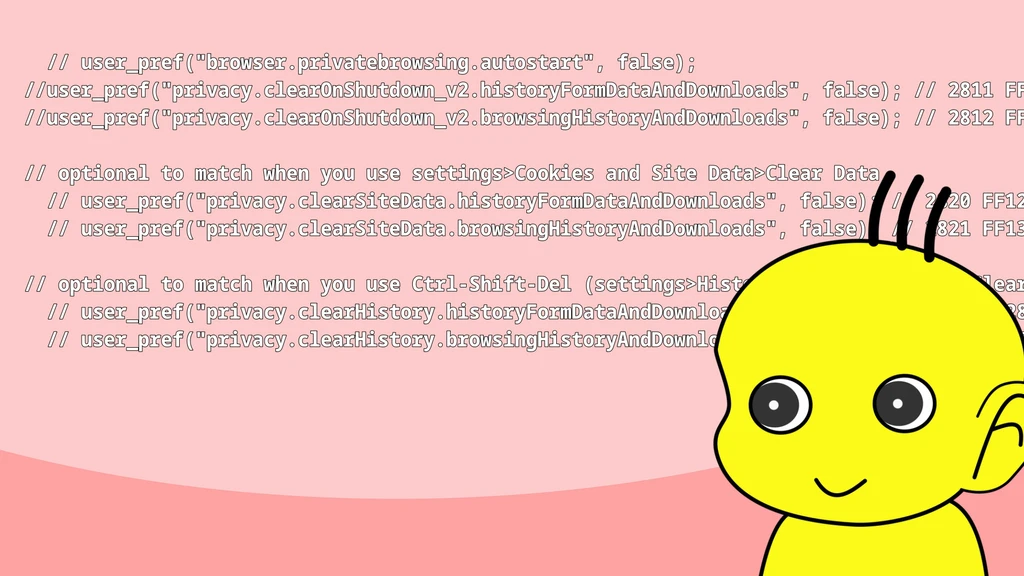
  // user_pref("browser.privatebrowsing.autostart", false);
//user_pref("privacy.clearOnShutdown_v2.historyFormDataAndDownloads", false); // 2811 FF128-135
//user_pref("privacy.clearOnShutdown_v2.browsingHistoryAndDownloads", false); // 2812 FF136+

// optional to match when you use settings>Cookies and Site Data>Clear Data
  // user_pref("privacy.clearSiteData.historyFormDataAndDownloads", false); // 2820 FF128-135
  // user_pref("privacy.clearSiteData.browsingHistoryAndDownloads", false); // 2821 FF136+

// optional to match when you use Ctrl-Shift-Del (settings>History>Custom Settings>Clear History)
  // user_pref("privacy.clearHistory.historyFormDataAndDownloads", false); // 2830 FF128-135
  // user_pref("privacy.clearHistory.browsingHistoryAndDownloads", false); // 2831 FF136+
Related to browser session restore, Firefox has very robust data auto-deletion, which recently got an overhaul. This includes anything like cookies, browsing data, cache, everything.
Arkenfox includes this special recipe for those who want session restore or more control over the Firefox auto-deletion settings.
 Unless you need session restore, it’s advised to not touch these and instead learn how to allow websites to store data.
- Visit the desired website you login, usually a login page.
- Press
Ctrl + i(⌘ + ion Mac) to open that website’s settings. You can also click on the padlock, “Connection (not) secure”, then “More information.” - Navigate to permissions, then the box “Set cookies,” “Allow.”
This way, you can save logins and site data without touching your Arkenfox configuration, while still deleting all that pesky browser data.
Before you complain, this is much harder to do in Chromium-based browsers.
To RFP or No RFP?
If you’ve been using Arkenfox’s user.js before today, there’s one big configuration to cover–Firefox’s fingerprinting resistance or RFP (Resist FingerPrinting).
user_pref("privacy.resistFingerprinting", true);
user_pref("privacy.resistFingerprinting.letterboxing", true);
user_pref("webgl.disabled", true);
user_pref("privacy.spoof_english", 2);
In previous iterations of Arkenfox, this was enabled by default, but now it is disabled. The reason is if you need such an extreme level of protection, we already have Mullvad Browser for that, which still is the closest way to get to being the Tor Browser without being the Tor Browser.
If you have previously watched my other video about Firefox, I strongly recommend updating and removing any changes related to RFP.
New Tab
user_pref("browser.newtabpage.enabled", true);
Arkenfox disables the new tab page, as it is a common vector for Mozilla to deploy experiments and unwanted links on you. I have encountered some folks in the wild who prefer this, so you can reenable it, but be warned you might need to deal with some Mozilla stuff you might not have signed up for.
Search Engine Suggestions
user_pref("browser.search.suggest.enabled", true);
user_pref("browser.urlbar.suggest.searches", true);
Some people still prefer to have their URL bar be their search engine. Setting these options brings the predictive search back.
Disk Caching
user_pref("browser.cache.disk.enable", true);
By default, Arkenfox disables disk caching, which can improve performance. I have never enabled this because I could not notice a speed difference, but I included it for the performance freaks.
Running & Updating
 When you are done with your user-overrides.js, it’s time to put it into practice by installing it.
First, close Firefox and you will be modifying all the configurations in bulk using the terminal. Arkenfox can change over 5000 settings of totally random things in Firefox.
 Using the terminal in your
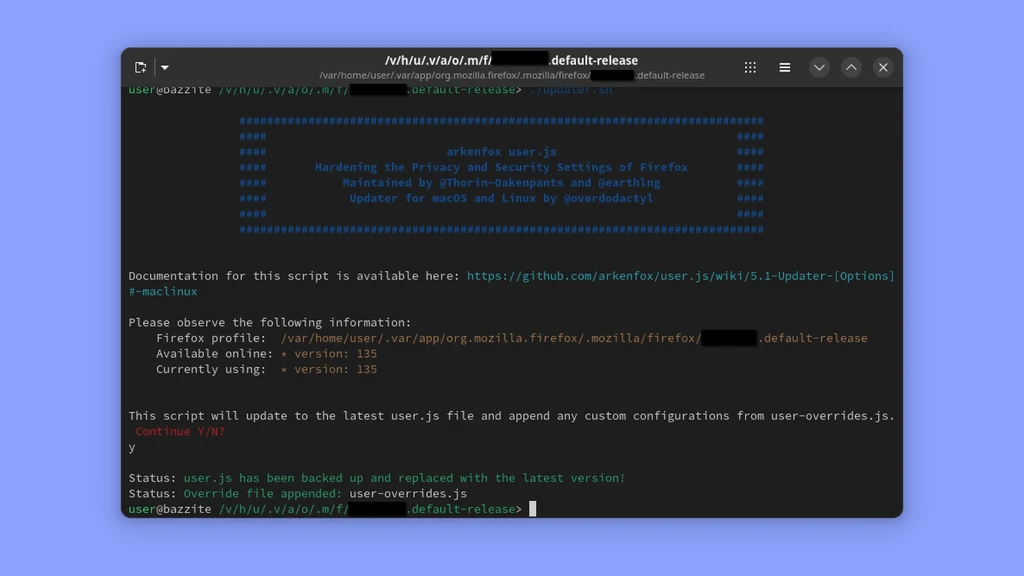
 <profile> folder, run the scripts in order by typing ./ then the script. You can also drag/drop files into your terminal to run them:
prefsCleaner.sh: Follow the on-screen instructions by typing the number (1 to start), followed by aEnter.updater.sh: This will make a backup of your previous Firefox configuration (not your user-overrides.js), update youruser.js, tweak it with youruser-overrides.js, then you should be good to go.
Post-Install
Arkenfox disables all telemetry out of the box and while Pocket is a web-based service, capturing the network traffic shows Pocket never attempts to phone home, except when you interact with it of course. Any other changes are purely cosmetic or preference.
- Google is still the default as there is no about:config settings for it. You may change it to be whatever you want.
- You may also customize your tab bar or vertical tabs as these are independent of Arkenfox.
Updating
You must also return to this folder and run these scripts when Firefox or Arkenfox receives a new release. Make a shortcut on your desktop (or somewhere else) to this folder so you can come back and run the scripts.
If you use multiple Firefox profiles, this process will need to be repeated on all of your profiles. I use a shell script to execute all of the scripts in sequence.
The best way to track updates is to subscribe to the Arkenfox GitHub RSS feed. This is because Mozilla doesn’t have a RSS feed for stable Firefox updates, only the Nightly (Alpha) releases. Instead, you must subscribe to their email newsletter.
To subscribe to Arkenfox’s RSS feed, add the following to your RSS feed reader.
https://github.com/arkenfox/user.js/releases.atom
Video Credits
Track Listing
- KK - Sunday-afternoon (日曜の午後)
- crepe (くれっぷ) - Fairy Lullaby (妖精の子守歌)
- KK - Lazy Club Activities (だらだら部活動)
- yuhei komatsu - COLOR
- KK - Ordinary Landscape (いつもの風景)
- yuhei komatsu - Holiday
- Nakagawa Koutarou (幸太郎中川) - Shiunin Sora’s Theme (紫雲院素良のテーマ) from Yu-Gi-Oh! ARC-V (遊☆戯☆王 ARC-Ⅴ )
- Outro: Khaim - Neon Lamp