A while back, I was tasked to help a friend of mine setup his new gaming PC. Since he’s mostly a single player gamer and has a burning hatred for Windows 11, it got me thinking. I don’t think anyone has tried to gather everything they could about Steam on Linux. I wanted to take a revisit the fundamentals and focus on the fast lane to get you caught up with using Steam on Linux. A lot has happened over the last couple years and what does it take to get started with gaming of Linux?
A Gamer’s Sacrifice
An important thing to know about Linux gameing is there are some games you can’t play, whether using Linux in the traditional computing sense or a Linux handheld like the Steam Deck or the Lenovo Legion Go S. I’m proud to report if the majority of games you play are single-player games, you will have little to no issues playing them on Linux. Likewise, if you are considering emulating games or playing retro games, most of the same programs like RetroArch, Dolphin, or PSX are available and functionally similar to their Windows versions.
The majority of competitive games won’t support Linux. This includes games like Call of Duty, Rainbow Six Siege, or Fortnite won’t work at all. There have also been games like Apex Legends and League of Legends that used to work on Linux, but don’t anymore. The reason is these games require you to install kernel level anti-cheat into your computer to make sure you aren’t cheating.
Meme Compilation
- Nicki Minaj skin is Distracting - Modern Warfare II from @fadedjokeh on YouTube
- [Severe profanity warning] The Ubisoft 2019 E3 Rainbow Six Siege streamer match, where the rapper Lil Yachty teamkilled someone
- We Like Fortnite from @StrikeRoom on YouTube (reupload)
- Destiny 2 pledges to ban all Steam Deck and Linux users in the name of cheating
This isn’t to say all multiplayer games don’t work on Linux. In particular, certain games like the Halo: Master Chief Collection support running on Linux using a weakened version of Easy Anti-Cheat and Fall Guys is the same way. The outlier is games like Warframe and Overwatch 2, which employ their own brand of anti-cheat or Marvel: Rivals, who pledge to allow Linux gamers to play. Your millege may vary, but if you are ever in doubt, an important site to remember is Are We Anti-Cheat Yet, which documents the status of games with anti-cheat and if they work on Linux or not.
Linux Locks Your Future Game Choices
What’s more is some AAA games with intrusive DRM for Linux can cause issues for you. The best examples of this are the EA and Ubisoft games, both of which deploy various types of copy-protection, virtual machine detection, and obfuscation layers to slow down pirates from cracking the game on day 1. This has also resulted in issues like some of the mid-2010s Assassin’s Creed games from working on Linux. That or clients like uPlay or Origin not working for random reasons.
Now while the DRM and anti-cheat issues may not mean much to you now, this still affects future games with invasive DRM or rootkit anti-cheat features. It’s important to remember that when you are using Linux, you are locking yourself into playing only games that don’t struggle with these issues, short of using Windows. It’s important that you know this going in so you know whether or not installing Linux is best choice for you.
There are also plenty of resources that document issues or potential hiccups. ProtonDB documents the work that many other Steam gamers on Linux have done to get games to work or if games are working or not. Before buying/playing a game, visit ProtonDB to prep for any particular issues. It’s really also a buyers’ guide if you have no interest in troubleshooting issues.
Quick Procedure to See If Your Game Works
Recent titles require some time in the oven for the Linux community to work on them, but the majority don’t need extra attention.
- Visit ProtonDB to see if the game works.
- Visit Are We Anti-Cheat Yet to see if the anti-cheat works.
- Evaluate if the game developer will break Linux support at a future date. If they do, is it on purpose or by accident?
Getting Started
So disclaimers out of the way, you’ve decided to make the plunge at installing Linux; the first thing that we have to get into is installing Linux itself. I won’t get too much into the weeds here, but the distribution you pick is incredibly important. I’m going to save you the trouble right now and tell you whatever you were told online, on Reddit, another YouTube video–throw it out the window. There’s a lot of old advice online, including from me.
As of writing this, the best gaming Linux distribution, if you need to ask, is Bazzite. You don’t have to think about updates or using the terminal. You just care about your games and keeping your games working.
Not only that, if you use one of the Windows-based gaming handhelds, there’s a high likelihood that Bazzite will outperform Windows and integrate better with the hardware. While most steps can be replicated across most flavors of Linux, there are many pitfalls with libraries games depend on, especially legacy libraries needed by Windows to play games or need to be kept up to date to match what’s Steam or games expect.
Related: The Verge’s Sean Hollister’s review of Bazzite on the ASUS ROG Ally X
GNOME or KDE?
Looking up Bazzite online makes it easy to think it’s only for the handheld gaming devices, but Bazzite has a desktop mode similar to SteamOS or you could opt for something completely different.
The 2 environments are KDE and GNOME. I recommend starting with KDE; KDE is what’s used in the Steam Deck after all, but occasionally it suffers from some bugs like copy/paste stops working randomly. GNOME is personally a better experience for me, but it doesn’t handle monitor scaling as well as KDE does.
Just try out both of them and Bazzite’s install page provides an easy command to switch between the 2 via 1 terminal command and reboot.
Steam
Bazzite comes with Steam preinstalled and various under the hood utilities to get things like your controllers to work better or optimizing performance as a whole. There’s optimization for hybrid GPUs usage for laptop users.
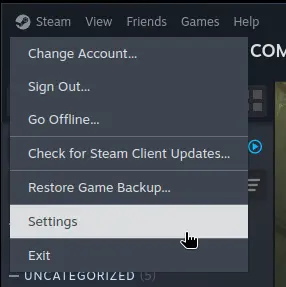
After logging into Steam, the first thing that you need to do is open the Steam settings → Compatibility → Enable Steam compatibility for all games.

The reason is Steam will only give you access to “Steam Deck verified” games out of the box. By changing this compatibility setting, you change this so Steam attempts to run all games in your library using the Proton compatibility layer. Steam will prompt you to restart, then start installing and playing games!
Troubleshooting
Of course, you should always be prepared for stuff to go wrong. As a general disclaimer, your results may vary from others online and if you aren’t prepared to troubleshoot, your game may not work at all. As always, check ProtonDB and see what other people have done. If you are having problems, try some of the suggested solutions.
Variants of Proton/Wine
Often times, the version of Proton that Valve ships isn’t optimal in certain cases. Valve also provides an “experimental” version of Proton that is periodically updated with hotfixes for newer titles.
To change your Proton variant, right-click on your game, Properties → Compatibility → Force the use of a specific Steam Play compatibility tool and select your desired Proton version (e.g. Proton Experimental).
ProtonQt-Up
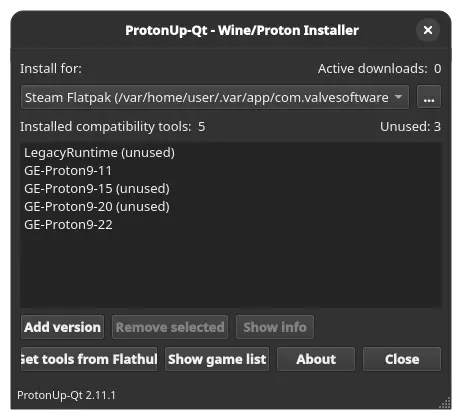
Additionally, there are other third party versions of Wine. The most popular is Proton-GE, GE being the creator Glorious Eggroll. Proton-GE is by far the most popular, but it does need to be manually updated every release. ProtonQt-Up is preinstalled on both SteamOS and Bazzite.
To update other custom Proton, you need to use ProtonUp-Qt. It’s basically a manager for installing custom Proton versions and supports all of the Linux game launchers including Steam.

To use ProtonUp-Qt, select the game launcher you want (ProtonUp-Qt automatically detects it). In this case, select Steam and select “Add Version.” From here, select the desired Wine fork (default is Proton-GE) and install it when prompted.
Unfortunately, it does need to manually updated. If you are having a problem launching a game, open ProtonUp-Qt again and update your Wine fork to the latest version.
Launch Options

In the case of troubleshooting, Steam games all have launch options if you right-click on your game and visit Properties → General → Launch Options.
Here you enter in witchcraft variables you find on ProtonDB that worked for other people. There’s a few things to look out for and it’s how each of them is broken down.
Below is a sample command; don’t use it with every game, but it’s helpful to know the difference between each one.
Special note for GNOME users and have issues right-clicking, visit Steam → Settings → Interface → Enable context menu focus compatibility mode
mangohud PROTON_NO_ESYNC=1 __GL_SHADER_DISK_CACHE=1 __GL_SHADER_DISK_CACHE_SKIP_CLEANUP=1 DXVK_HUD=compiler PROTON_ENABLE_NVAPI=1 PROTON_HIDE_NVIDIA_GPU=0 %command% --launcher-skip
Overlay Programs
Every command always starts with overlay programs, which run on your
Linux system and do specific things. In this sample command, mangohud
is MangoHUD, a program
that lets you track performance in an overlay. Another popular one is
gamescope, a program called
Gamescope that can fix how
windows are drawn within games.
While Bazzite includes these, you will need to make sure your system is up to date, otherwise these overlays don’t work or prevent games from launching. If you have no interest in such tools, you need to remove these from your launch arguments.
Environment Variables
Everything with an = are environment variables. These tweak Wine to do
things.
Esync
With PROTON_NO_ESYNC=1, Proton is normally configured to make games
that are CPU-bound to use
Esync, which
forces the game to be multi-threaded, even if it isn’t on Windows, which
can increase performance. Some games don’t handle this well or older
CPUs are incompatible, so it needs to be disabled in these cases.
Fossilize & Shader Caching
Other environment variables like the __GL_SHADER_DISK_CACHE... are
needed to control shader caching. On both Windows and Linux, Steam and
games on Steam need to load shaders for you to see things in a 3D
environment. On Linux, Steam uses
Fossilize, which runs when
you launch a game with a popup telling you shaders are being processed.
The flag DXVK_HUD shows on-screen when shaders are being compiled by
Fossilize or in the background by DirectX/Windows.
NVIDIA
If you have an NVIDIA graphics card, you’l learn quickly that NVIDIA is the boogeyman of stuff not working on Linux and doesn’t support the Steam Deck Big Picture Mode interface.
More over, there are environment variables for games like Batman: Arkham
Knight and the Witcher 2 to unlock the NVIDIA specific features in
games. Most of the time, it’s the variables
PROTON_ENABLE_NVAPI=1 PROTON_HIDE_NVIDIA_GPU=0, which allows Wine to
directly interact with your NVIDIA GPU.
Launch Arguments
Finally are the old school Windows arguments. These are always following
the word %command% and the --yourargrument. It’s also great if you
need to bypass game launchers or intro screens.
Popular commands include -novid in Valve’s games to skip the logo
crawl and --no-launcher in games like Balder’s Gate 3. Most launch
arguments usually follow a wording similar to this.
Now You Know
Lastly, you are not limited to Steam when it comes to games, but it is where the vast majority of games are. There are launchers that can run games on other platforms like Epic, GOG, Battle.net, and retro games.
Track Listing
- KK - Ordinary Landscape (いつもの風景)
- yuhei komatsu - Scattered Sakura (桜が散る時)
- crepe (くれっぷ) - Fairy Gift (妖精の贈り歌)
- crepe (くれっぷ) - End of Summer (夏の終わりに)
- Yu-Gi-Oh! Duel Monsters GX Spirit Summoner (遊戯王デュエルモンスターズGX SPIRIT SUMMONER) - Deck Construction Music
- Outro: Khaim - Neon Lamp